
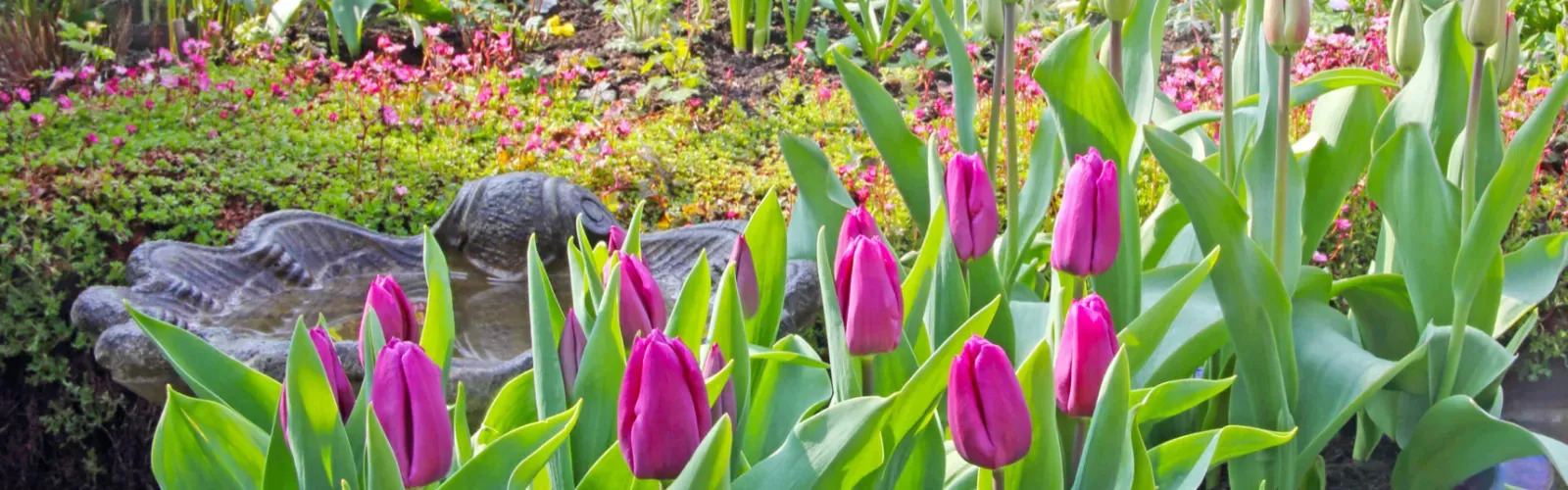
Photography show: For our in-house photography show on September 12, 2024, choose from the following themes: (1)
- Macrodisiac –an extreme close-up of plant material filling all or most of the screen
- Landscopia –a landscape of any scale, from sweeping vistas to miniature natural scenes
- Inanimately Speaking – a still life photo incorporating plant material
Enter up to three photos in any theme for a fee of $10 each to covert printing and matting. You will keep your photo after the show .
For detailed information on how to take better cellphone photos and edit them, check out the slideshow at https://framinghamgardenclub.org/wp-content/uploads/2025/08/Better-Cellphone-Photos_rev.pdf
INSTRUCTIONS
- Take high resolution photos – check your settings – on Iphone, go to “Settings/Camera/Formats/Photo Mode, then choose between 12MP or 24 MP (24 is recommended enough – if your’s doesn’t go that high, choose the highest.24 MP is approximately 3MB, 12 MP is about 2MB.
- In Android, open your camera app, look for Setting icon (gear icon) or Quick Controls icon (four dots), then choose Photo Size setting and choose one of the higher resolutions.
- Carefully compose your photos – usually following the Rule of Thirds – especially for landscape photos. For example, do not place the sky’s horizon in the middle of the image
- Edit photos if necessary to reduce shadows and to make other improvements
- Crop photos to 8×10 landscape or portrait (see below for how to do this)
- Save your final image with a recognizable name such as: jpeg or Shanlandscape.jpeg. (if you cannot do this, just send the image without renaming)
- Send your image to fgcfitzlaw@gmail.com no later than August 24
- Pay Shannon $10 fee per photo to cover the cost of printing and matting by Venmo, cash or check; Shannon will transfer the total amount to Cathy D.
- Questions: talk to Shannon
Photos must be formatted to 8 by 10 inches with a resolution of at least 1000kb (1mb). To crop your photo to the appropriate size on an Iphone:
- In Photos, tap a photo or video thumbnail to view it in full screen.
- Tap Edit, tap
 , then do any of the following :
 - Crop to a the appropriate preset ratio: Tap
 , then choose 4:5 for an 8×10 inch image.
 - Use your finger to drag the edges of the crop lines or to move the photo within the crop lines until you find the most satisfying crop.
- Tap Done to save your edits, or if you don’t like your changes, tap Cancel, then tap Discard Changes.
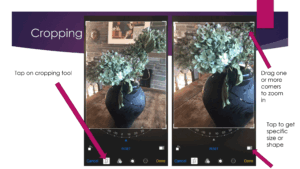
- To crop on Android phones, scroll through your gallery and find the photo you want to crop. Tap on it to open.
- Look for the little pencil icon. Tap on it.
- Now, select the crop icon. It’s usually represented by a square or rectangle.
- Once you’ve done that, a border will appear around your image, and you’ll see the crop tool in action.
- Drag those corners and edges to crop the image exactly how you’d like it.
- Now in order to crop the photo in the different aspect ratio, tap the border icon.
- Then select the aspect ratio 8×10 (3:4)
- Once you’ve made all your changes, tap “Done.” Your changes are now saved.
You must be logged in to post a comment.